
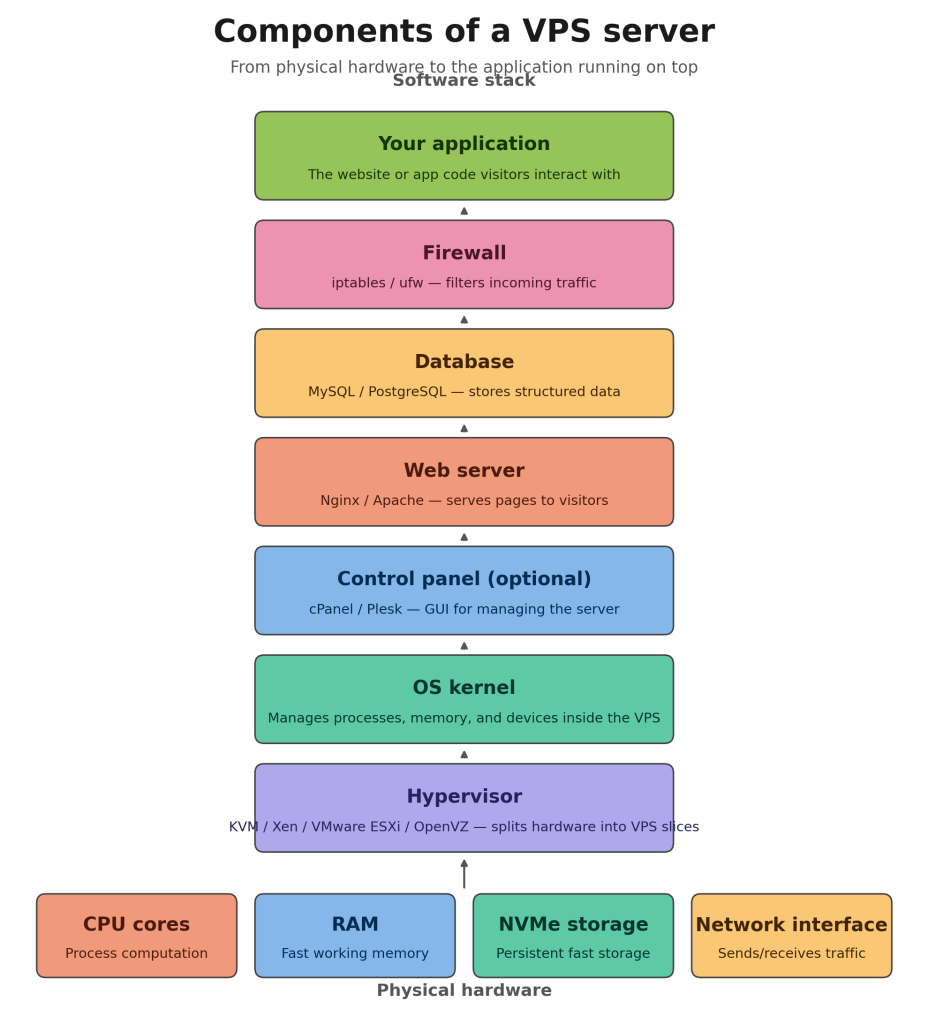
A Virtual Private Server (VPS) feels like a dedicated machine, but it’s actually a carefully engineered slice of a much larger physical server. Understanding what’s actually under the hood — both the hardware resources you’re allocated and the software layers that manage them — makes you a far more capable sysadmin, and helps you choose the right plan instead of guessing based on price alone.
This guide breaks a VPS down into its core building blocks: the virtualization layer that creates it, the operating system that runs on it, and the hardware (CPU, RAM, storage) that powers it.
How a VPS is created: the hypervisor
Every VPS starts with a hypervisor — the software layer that sits between the physical server’s hardware and the virtual machines running on it. The hypervisor’s job is to partition one physical machine into multiple isolated virtual servers, each with its own allocated CPU, RAM, and storage, and each behaving as if it were an independent machine.
There are several hypervisor technologies in common use among hosting providers, and the one your provider uses has a real effect on performance, isolation, and flexibility:
- KVM (Kernel-based Virtual Machine) is built directly into the Linux kernel and is currently the most widely used hypervisor for VPS hosting. Because it runs at the kernel level, KVM provides full virtualization with strong isolation between guests — each VPS gets its own kernel, which means a problem in one VPS can’t crash or interfere with another on the same host.
- Xen is an older, well-established hypervisor that supports both full virtualization and a lighter-weight paravirtualization mode. Xen has historically been popular with large cloud providers because of its maturity and flexibility in resource scheduling.
- VMware ESXi is an enterprise-grade hypervisor used heavily in business and data-center environments. It’s known for robust management tooling and live migration features, though it’s more commonly found in private cloud and enterprise VPS offerings than budget hosting.
- OpenVZ takes a different approach entirely: rather than virtualizing hardware, it virtualizes at the operating system level, with all VPS instances sharing the same host kernel. This makes OpenVZ extremely lightweight and efficient, but it also means less isolation — and you’re restricted to running the same kernel as the host, so custom kernel modules or certain OS choices aren’t available.
If you’ve ever wondered why some ultra-cheap VPS plans feel less reliable than others, the hypervisor is often the reason. KVM and Xen-based plans (full virtualization) generally offer more consistent performance and stronger isolation than OpenVZ-based plans, which can suffer from “noisy neighbor” issues if other tenants on the same host are heavy on resources.
The operating system layer
Sitting on top of the hypervisor is your guest operating system — and at the heart of that OS is the OS kernel. The kernel is the core program that manages everything happening inside your VPS: it schedules CPU time, manages memory allocation, handles file system operations, and mediates communication between your applications and the virtual hardware the hypervisor exposes to you.
With KVM or Xen, each VPS runs its own independent kernel, which means you can typically choose your distribution (Ubuntu, Debian, AlmaLinux, Rocky Linux, and so on) and even install custom kernel modules if your use case requires it. With OpenVZ, by contrast, your VPS shares the host’s kernel, which limits this flexibility but reduces overhead.
The kernel choice matters more than most people realize. It affects which system calls are available, how networking is handled, security patching cycles, and compatibility with certain software stacks — particularly anything that requires custom kernel modules, like some VPN protocols or specialized networking tools.
CPU allocation: not all vCPUs are equal
One of the most misunderstood parts of a VPS plan is the “vCPU” (virtual CPU) you’re allocated. Not all vCPUs behave the same way, and the type your plan uses has a direct impact on performance consistency:
- Dedicated vCPU plans reserve specific CPU cores exclusively for your VPS. No other tenant on the host can use that processing power, even when you’re not actively using it. This gives you predictable, consistent performance — ideal for production workloads, databases, or anything latency-sensitive.
- Shared vCPU plans allocate CPU time from a pool shared across multiple VPS instances on the same physical host. This is more cost-effective for the provider (and therefore for you), but performance can fluctuate depending on how busy your “neighbors” are.
- Burstable vCPU plans give you a baseline amount of guaranteed CPU, with the ability to temporarily use more processing power when it’s available and your workload spikes. This works well for sites with variable traffic — a sudden surge doesn’t immediately throttle your performance — but sustained heavy loads will eventually be capped back to your baseline.
Regardless of vCPU type, the number of CPU cores you’re allocated determines how much work your VPS can do in parallel. A single-core VPS processes one task at a time per core, which is fine for a low-traffic blog, but multi-core allocations let your server handle multiple simultaneous processes — multiple PHP-FPM workers, parallel database queries, or multi-threaded application code — without queuing behind each other. If you’re running anything beyond a simple static site, more cores generally matter more than higher clock speed alone.
RAM: the resource everything else depends on
RAM (Random Access Memory) is your VPS’s working memory — it’s where the operating system, your web server, your database, and every running process store the data they’re actively using. Unlike storage, RAM is volatile (it clears on reboot) but dramatically faster to read and write from, which is why it’s the resource most directly responsible for application speed.
When your VPS runs low on RAM, the OS starts relying on swap space (disk-based overflow memory), and since even fast storage is far slower than RAM, this causes a noticeable slowdown — sometimes severe enough to make a server feel unresponsive. This is why RAM is often the first resource people upgrade when a site starts feeling sluggish under load, even before adding CPU cores.
How much RAM you need depends heavily on what you’re running: a lightweight static website might be comfortable with 1–2GB, while a WordPress site with caching, a Node.js application, or a database server handling real traffic often needs 4GB or more to avoid memory pressure.
Storage: why NVMe matters
Storage is where your operating system, application files, and databases live persistently. Modern VPS providers have largely moved from spinning hard drives to solid-state storage, and increasingly to NVMe drives specifically.
NVMe (Non-Volatile Memory Express) is a storage protocol designed for SSDs that communicates directly over the PCIe bus rather than through older protocols like SATA, which were originally designed for mechanical hard drives. The result is dramatically lower latency and much higher throughput — NVMe drives can handle far more input/output operations per second (IOPS) than SATA SSDs, which matters enormously for database-heavy workloads, busy websites with lots of small file reads, or any application doing frequent disk I/O.
For most modern VPS use cases — running a CMS, an application backend, or a database — NVMe storage is now considered a baseline expectation rather than a premium upgrade, and it’s worth checking explicitly which storage type a provider uses before committing to a plan.
How it all fits together
A useful way to think about a VPS is as a stack, with each layer depending on the one below it:
- Physical hardware — the real CPU cores, RAM modules, and NVMe drives in the provider’s data center.
- Hypervisor (KVM, Xen, VMware ESXi, or OpenVZ) — partitions that physical hardware into isolated virtual servers.
- OS kernel — manages everything happening inside your specific VPS slice.
- Resource allocation — your specific share of CPU cores (dedicated, shared, or burstable vCPU), RAM, and NVMe storage.
- Your applications — the web server, database, and code that actually serve your site or service.
When a VPS underperforms, the cause is almost always traceable to one of these layers: an undersized RAM allocation causing swap thrashing, a shared vCPU plan getting squeezed by busy neighbors, slower SATA storage bottlenecking database I/O, or an OpenVZ host limiting kernel-level flexibility you actually need.
Choosing a VPS: what to actually look for
Armed with this breakdown, a few practical takeaways when comparing VPS plans:
- Favor KVM or Xen over OpenVZ if you need kernel flexibility or stronger isolation.
- Choose dedicated or burstable vCPU over shared if your workload is latency-sensitive or traffic is unpredictable.
- Don’t undersize RAM — it’s the resource most likely to cause visible slowdowns when it runs short.
- Confirm the provider uses NVMe storage, not just “SSD,” if your workload involves a database or heavy disk I/O.
- Match CPU core count to your concurrency needs, not just clock speed.
Understanding these components turns VPS shopping from a guessing game based on price tags into an informed decision based on what your specific workload actually needs.